Publisher Integration Guide

Overview
This guide provides a comprehensive walkthrough for integrating the Torox wall and API into your application, enabling new monetization and retention channels through our Loyalty Platform.
Which integration is right for you?
There are two ways to connect. Both show the same offers and reward users the same way — they differ in how much you build yourself and how the wall looks inside your product.
Offerwall (iFrame)
- Fastest to launch — least engineering
- Torox renders and maintains the wall UI
- You can customize colors and logo
- Your server makes one secure call to get a wall link, then displays it
API
- Fully seamless — the offers look native to your product
- You control layout, sorting, and presentation
- You control the offer list and detail screens
- Your server fetches campaigns and generates click links per user
The journey, end to end
Estimated time per stage
| Stage | What happens | Estimated time |
|---|---|---|
| App placement setup | Complete Torox in-dashboard wizard (name, currency, design, postback) | ~15 min |
| Technical integration | Offerwall embed or API build + postback endpoint | iFrame — 1 hour / API — few hours |
Glossary
A few terms used throughout this guide:
| App placement (a.k.a. source/app) | Your registered property inside Torox. One placement per integration or website surface. |
source_id / placement_id | The unique ID of your app placement. Used in every request. |
token (App Key) | Your secret key. Used to authenticate server-side calls. Never expose this in client-side code. |
uid | The unique ID you use to identify one of your users. |
geo | ISO country code for the user's location (e.g. US, GB). |
| Postback (S2S) | A server-to-server message Torox sends your endpoint when a user earns a reward. |
| S2S | Server-to-server — communication directly between your server and Torox, not through the user's browser. |
| Staging / Sandbox | A safe test environment. Lets you validate the flow without affecting live data or revenue. |
| Campaign | A single offer or game a user can complete to earn a reward. |
Create your source
As the first stage, register your app in the Torox dashboard. The process typically takes 15–30 minutes and will provide the two credentials required for integration: your source_id and token.
-
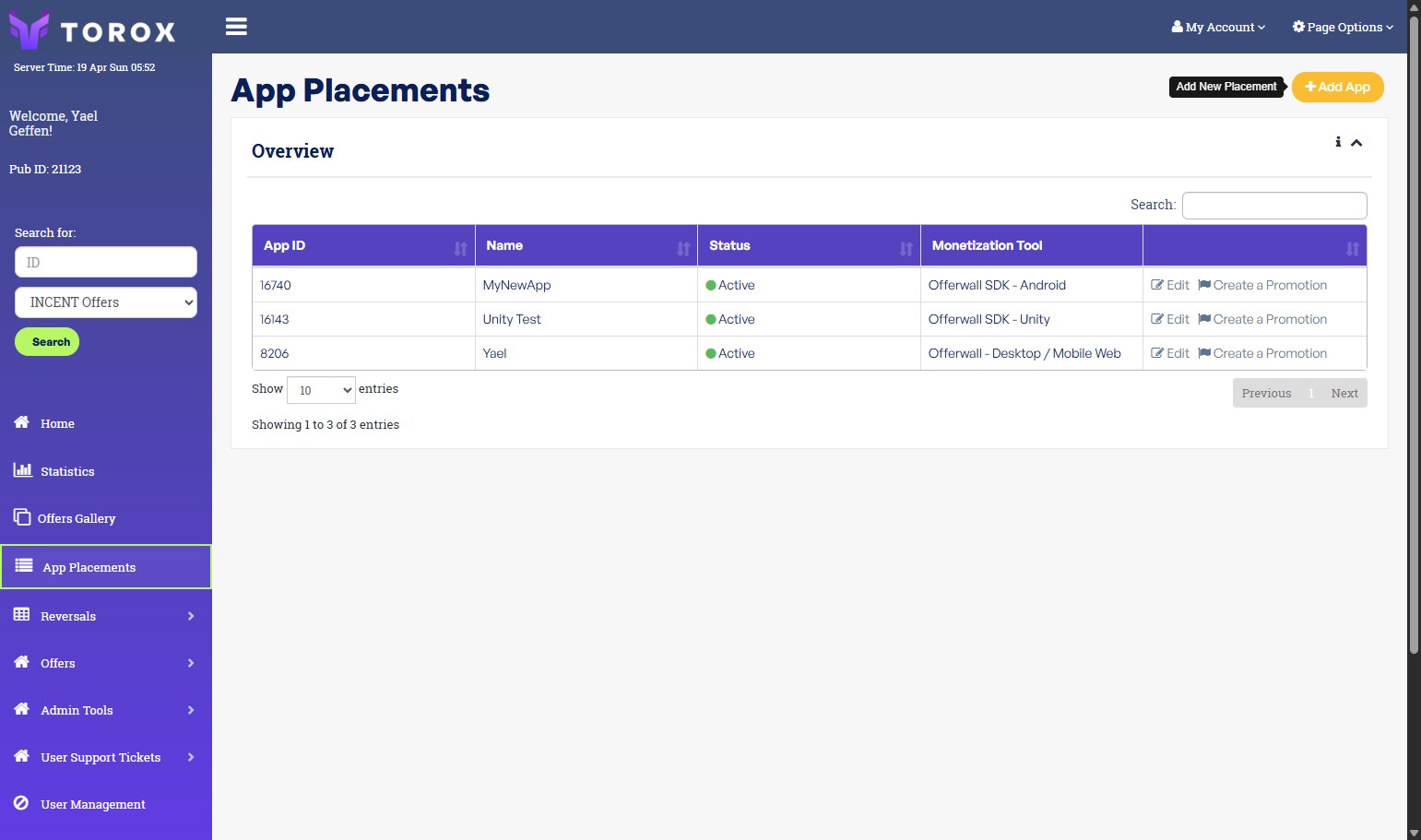
Open App PlacementsGo to torox.io and sign in, then open App Placements and click Add App.
-
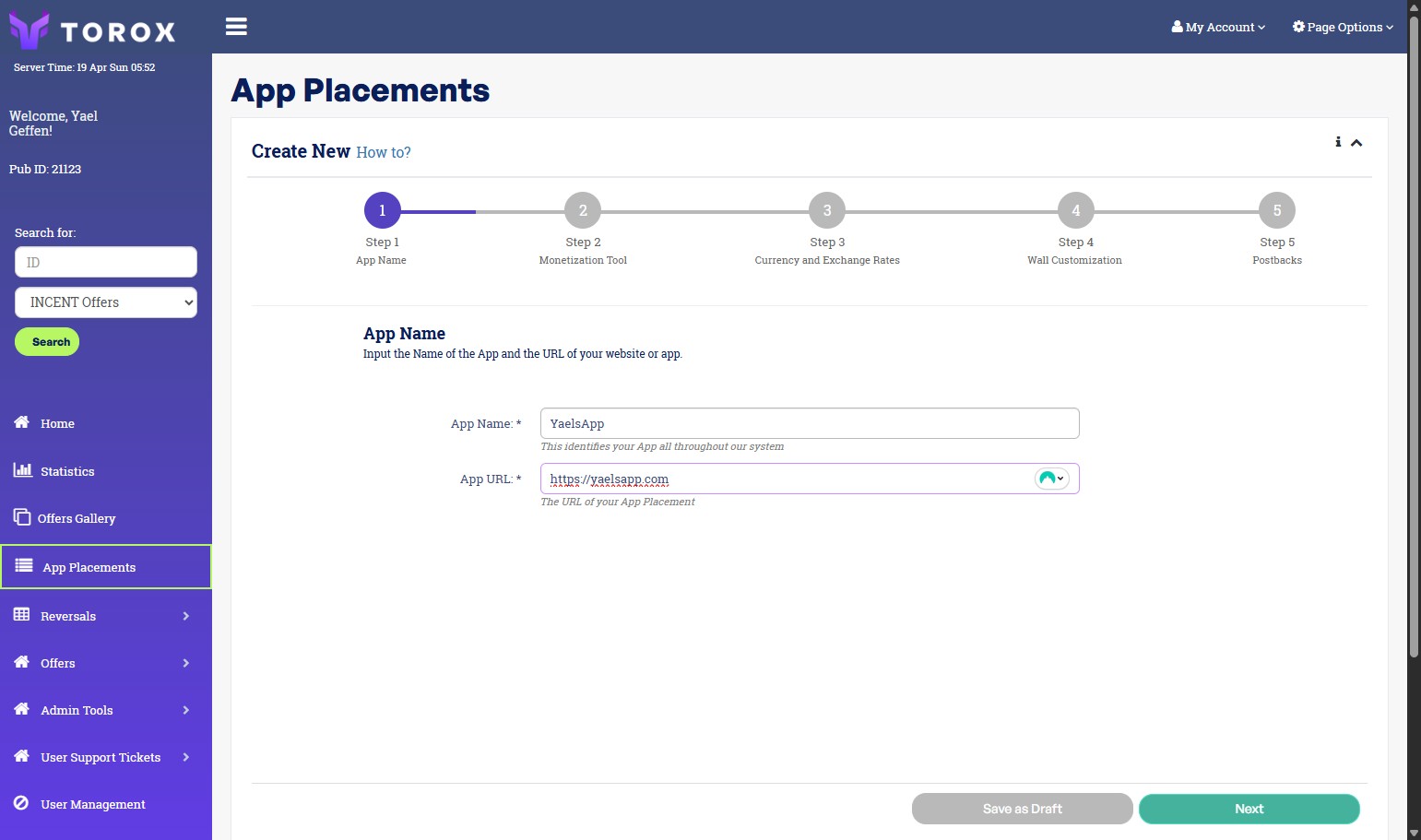
Name your source and add its URLEnter a recognizable source name and your app or website URL, then click Next.
-
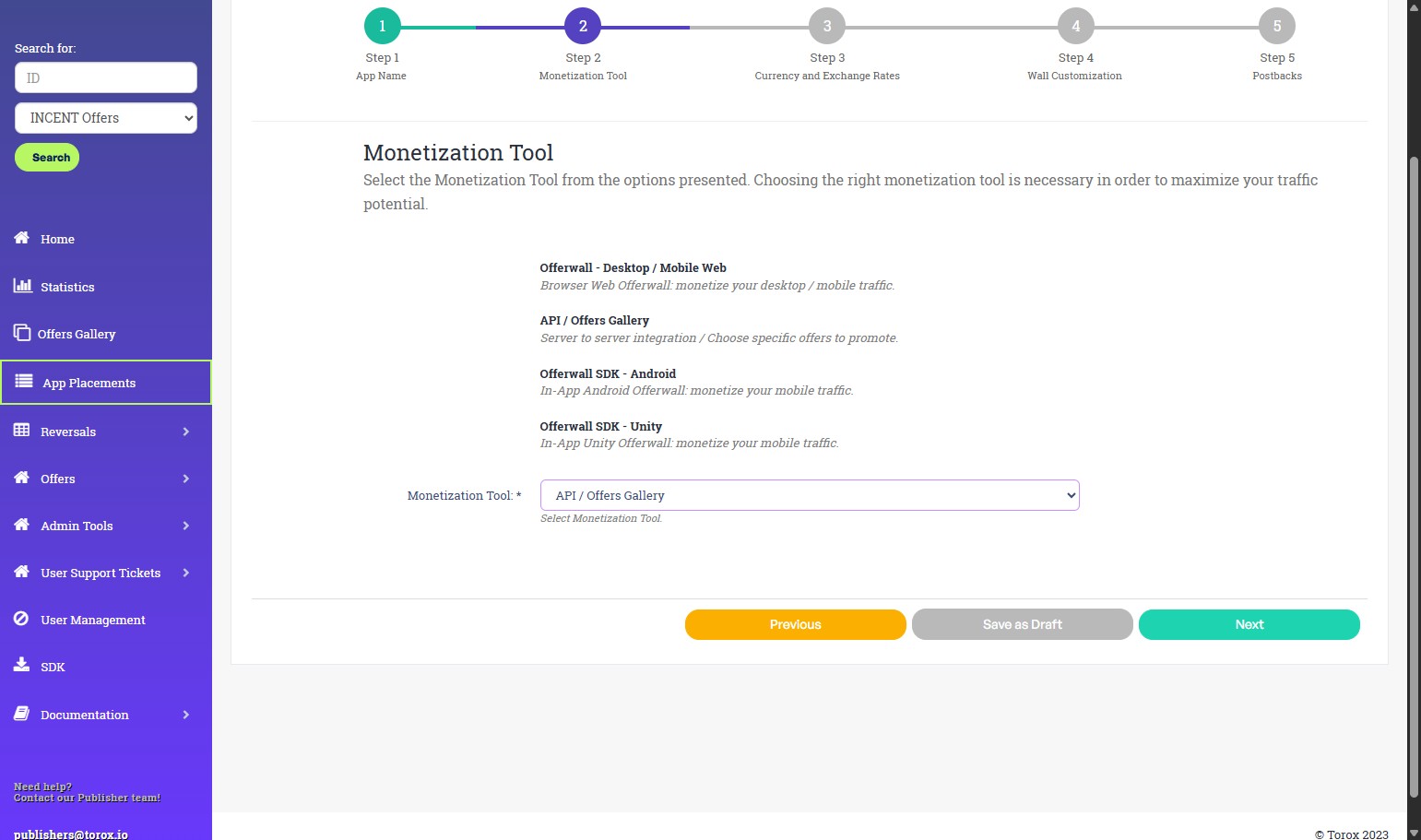
Choose your monetization toolSelect Offerwall or API depending on how you plan to integrate (see which integration is right for you). If you want a standalone integration that allows you to pull specific offers from us, you should choose the API option. SDK options shown here are deprecated — don't choose them. Click Next.
-
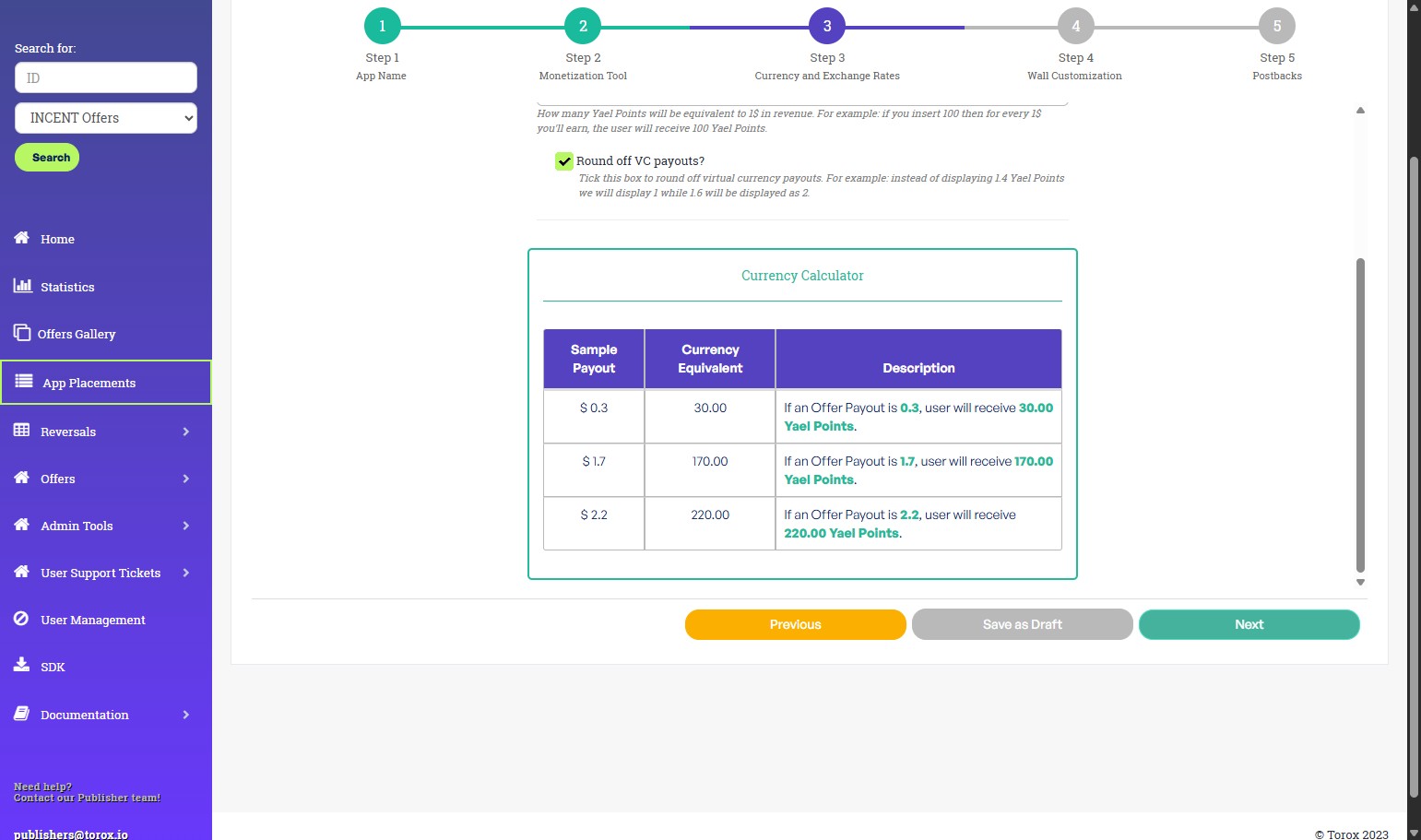
Set your currency and exchange rateEnter your currency name and exchange rate. The exchange rate is the number of currency units a user sees for every $1 of value — already adjusted for the share you pay out. Enter the final amount you want users to see, not the raw revenue. See the example below for help. Click Next.Worked example Suppose your currency is configured so that $1 = 100 units, and you want users to receive 70% of the revenue generated from completed offers. Since $1 is worth 100 units, users should receive 70% of that value:
100 × 0.7 = 70. Enter 70 as the payout multiplier. As a result, users earn 70 units for every $1 of revenue generated, while you retain the remaining 30%. The dashboard calculator shows live examples as you type.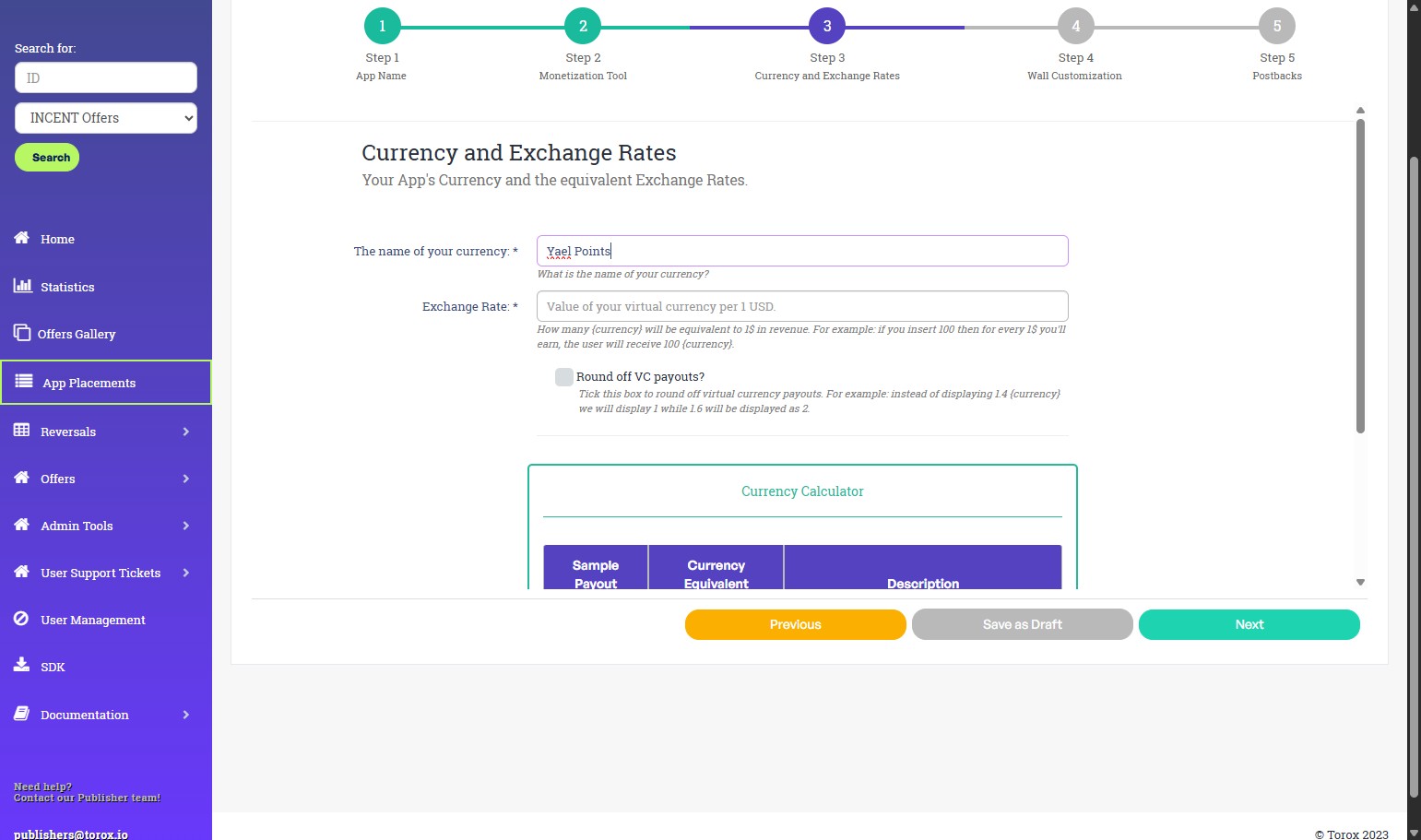
-
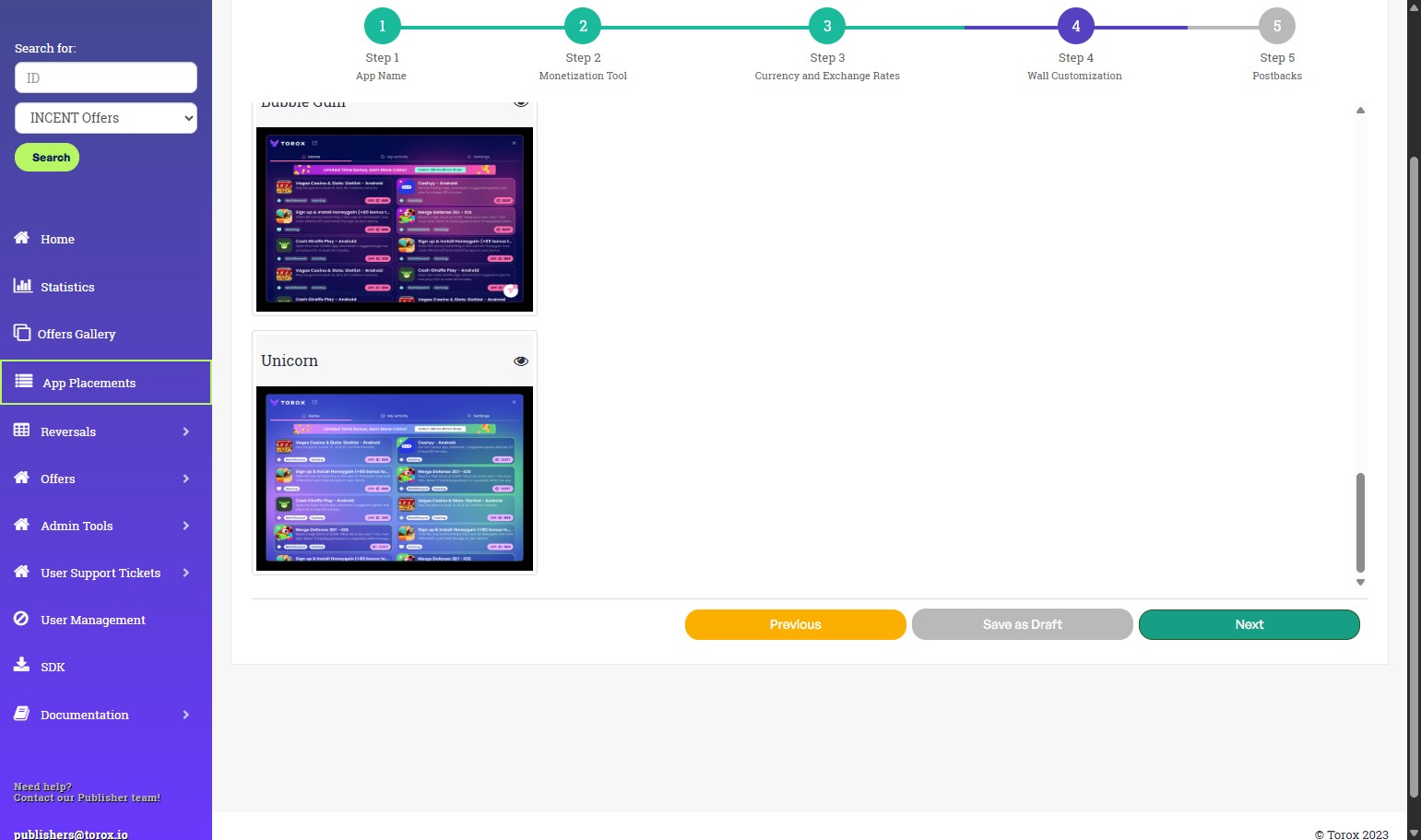
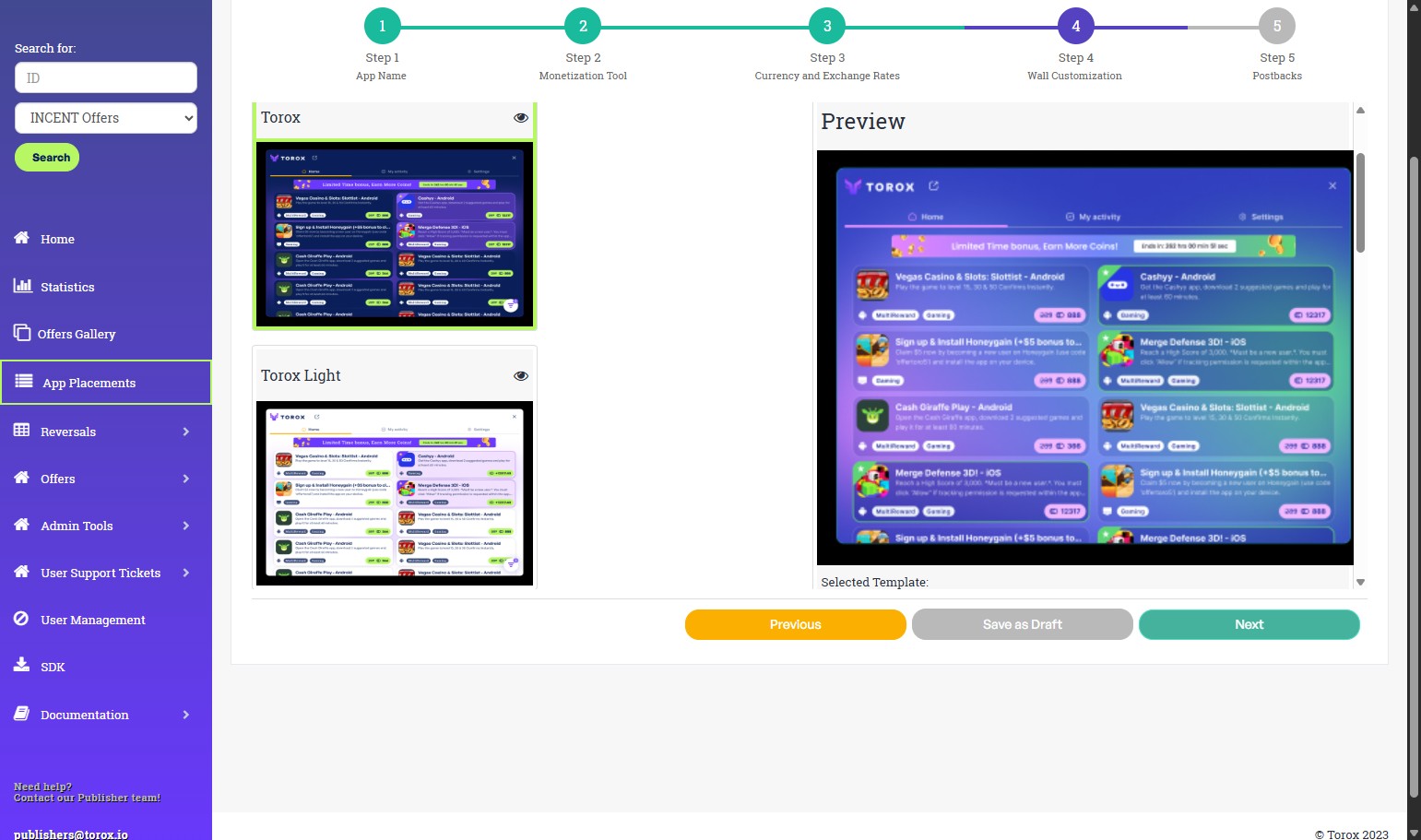
Customize the design (Offerwall only)If you chose Offerwall, you can customize the look so it matches your app. Your CSM can also remove the Torox logo, add a header, or set a branded currency icon. Click Next.
-
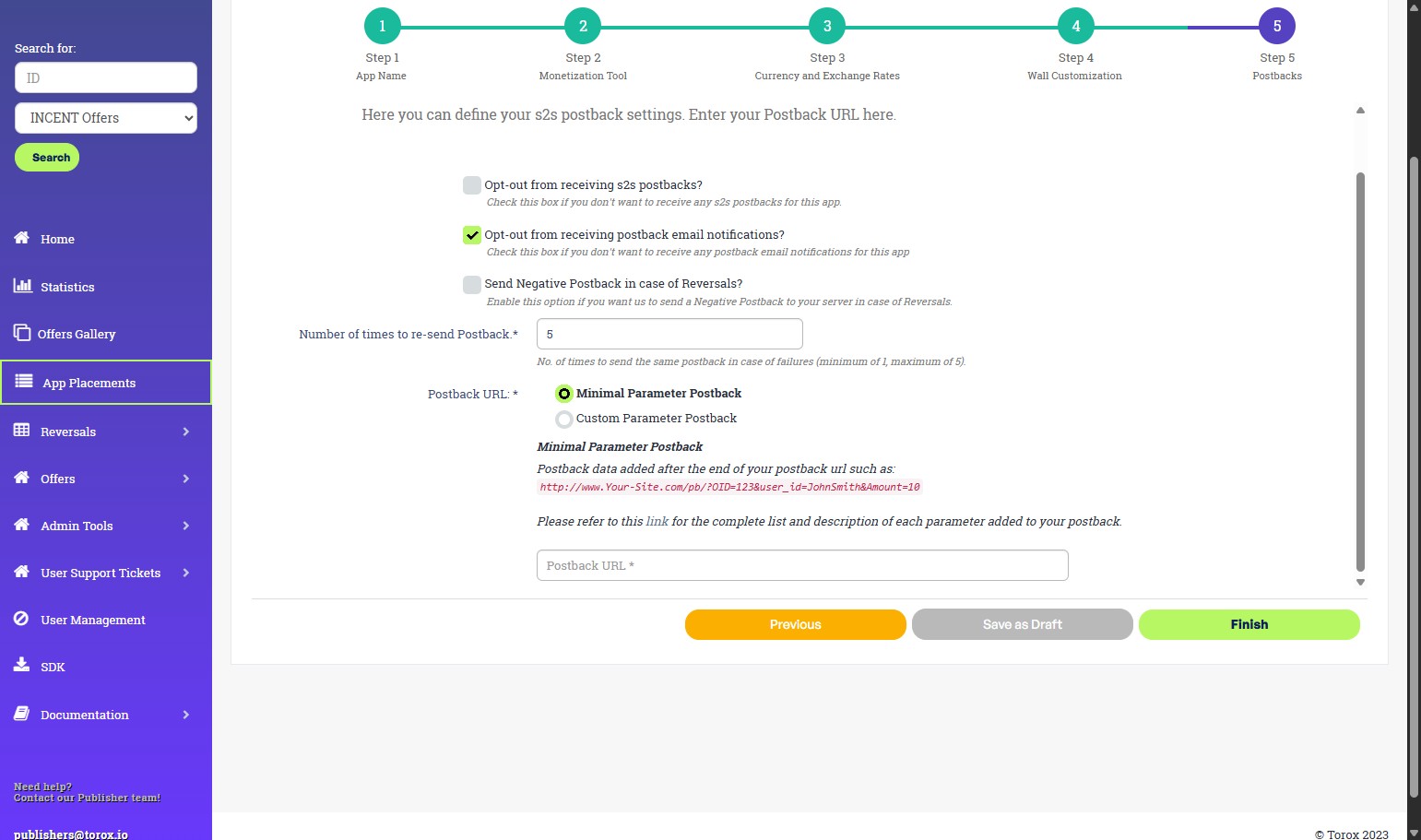
Configure postback settingsLeave the S2S and reversal checkboxes unchecked (these are defaults Torox doesn't recommend enabling). If you enable the Minimal Parameter Postback option, Torox will send postbacks containing only the required parameters list. You can opt out of postback email notifications and set how many times Torox retries a failed postback. Then enter your postback URL — see the postback section for how to build it.
-
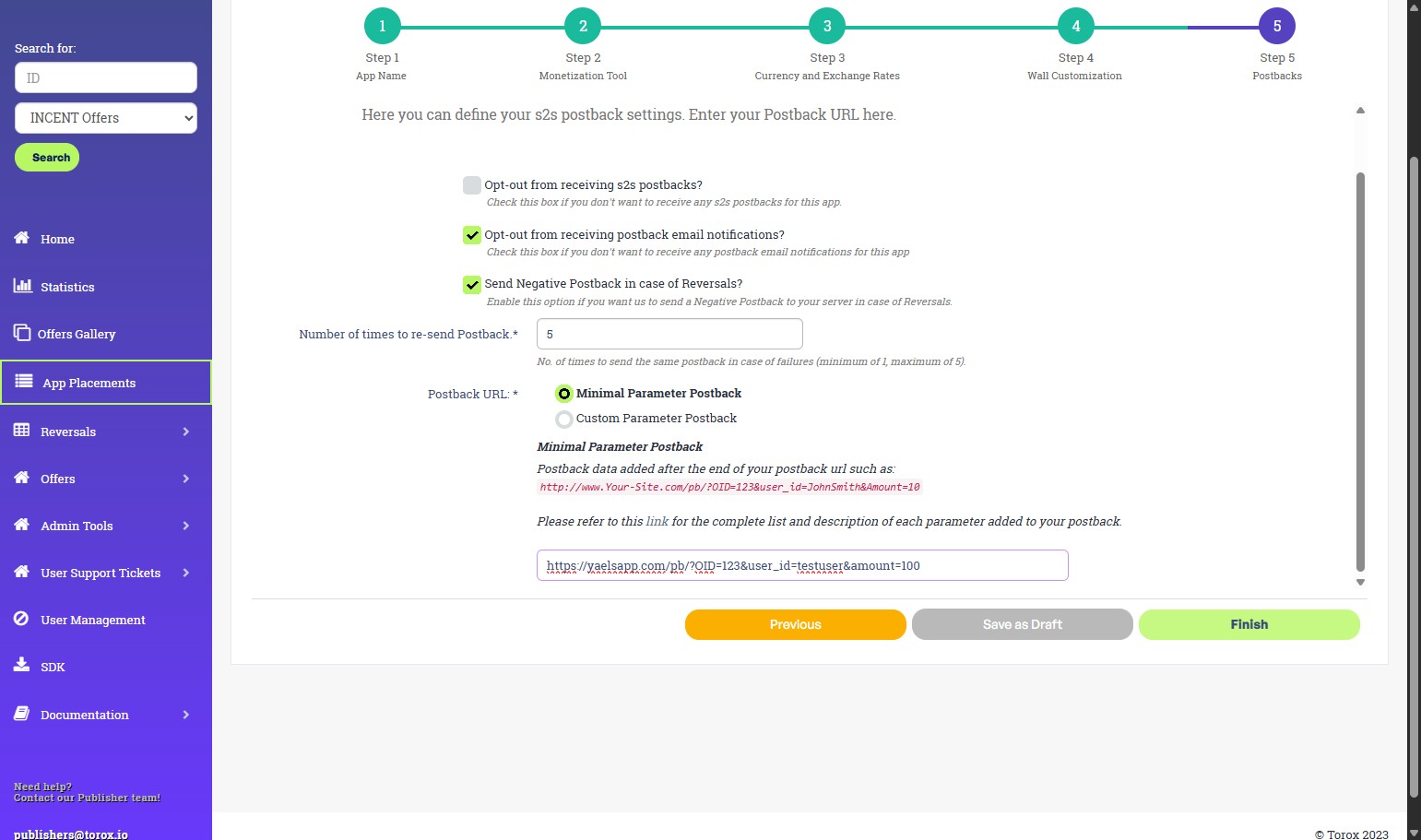
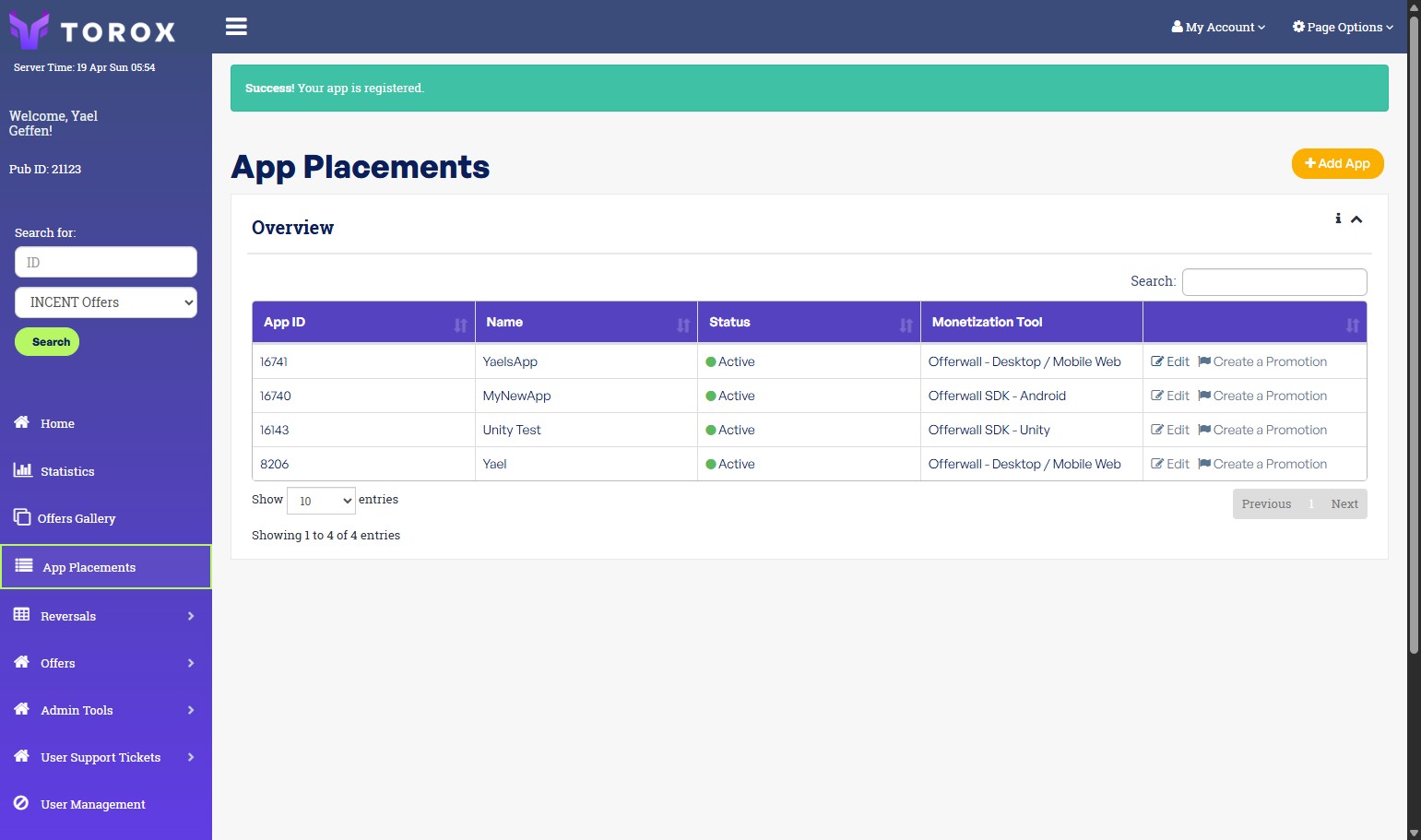
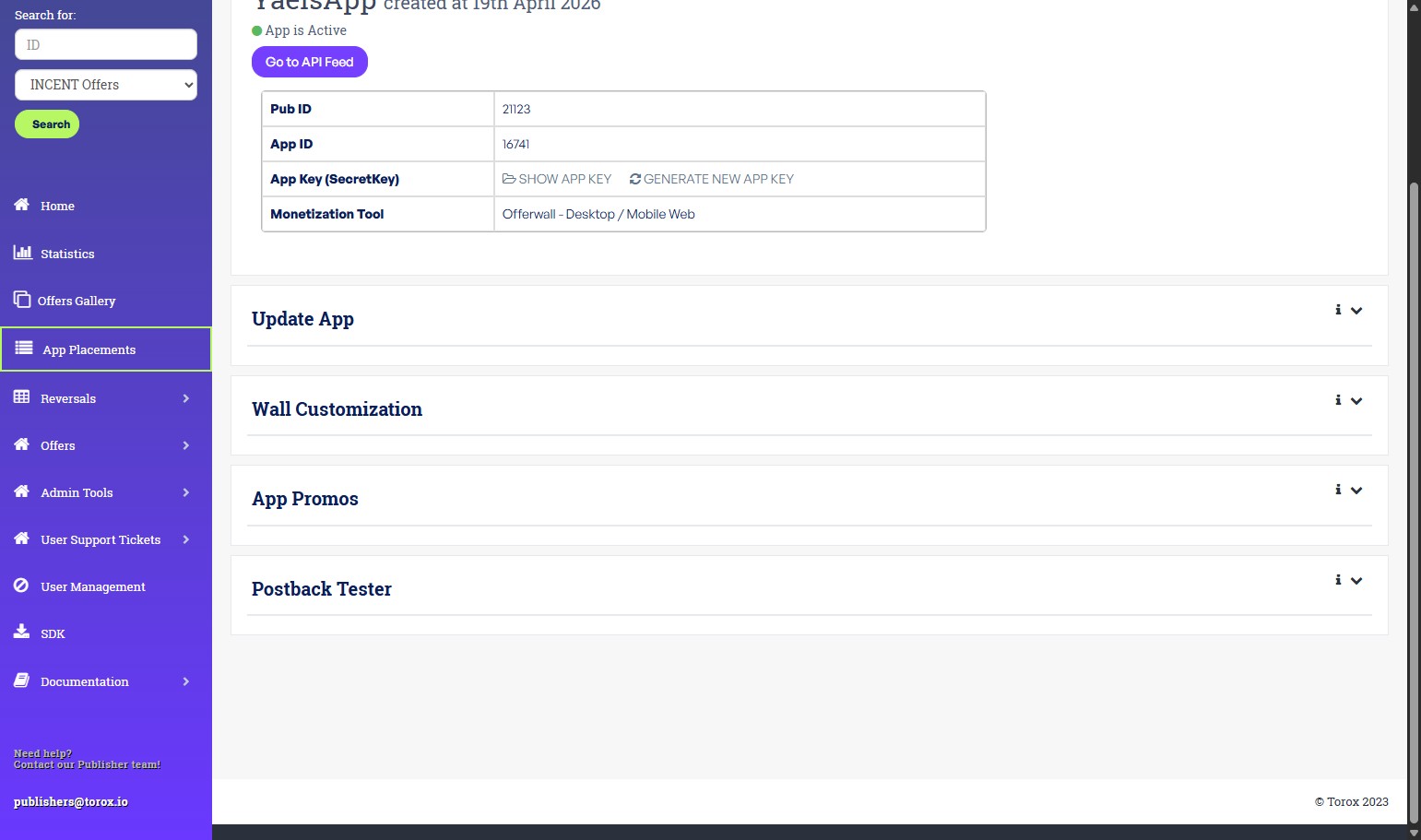
FinishClick Finish. Your placement is created. You can re-open it any time to edit details, choose an Offerwall design template, open Wall Customization, set up promotions (do this with your CSM), and run the postback tester.
-
Test PostbackClick Postback tester. When using the tester, the Offer ID field must contain a valid offer ID from the Torox inventory. You can obtain an offer ID from the Offer Gallery by selecting any active offer and copying its ID. The Postback Tester is limited to 20 attempts per day. All Postback Tester requests are sent with
conversion_id=100.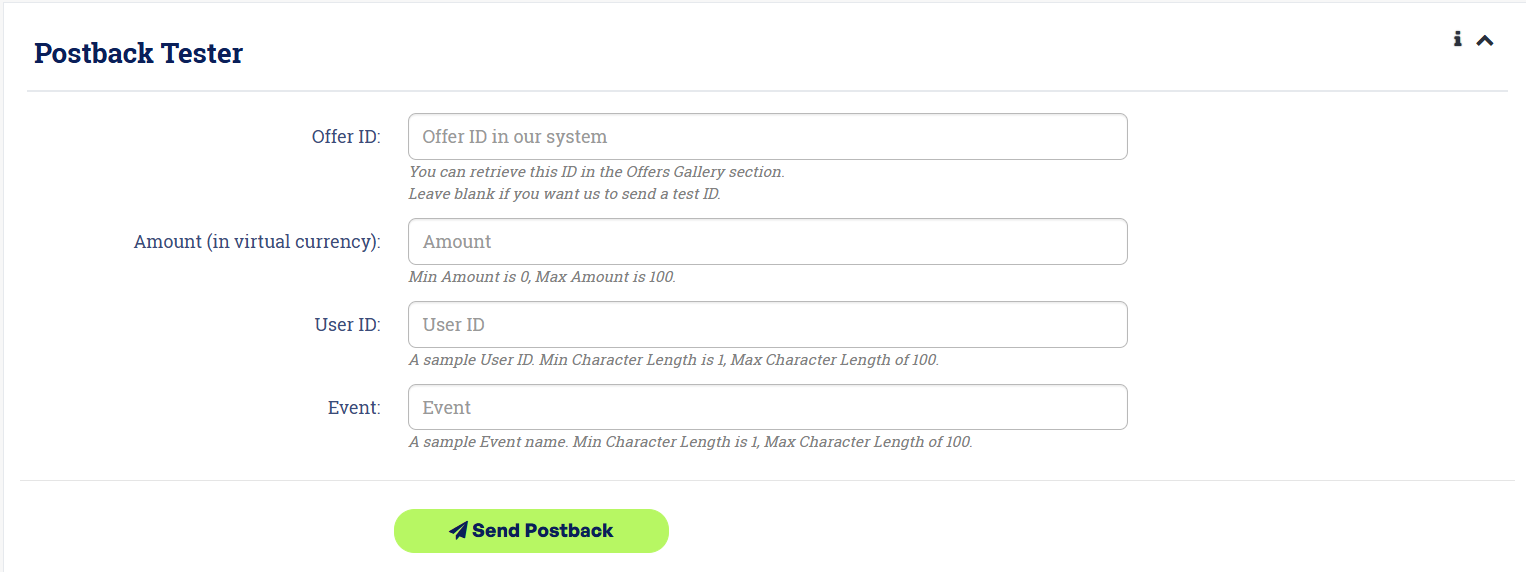
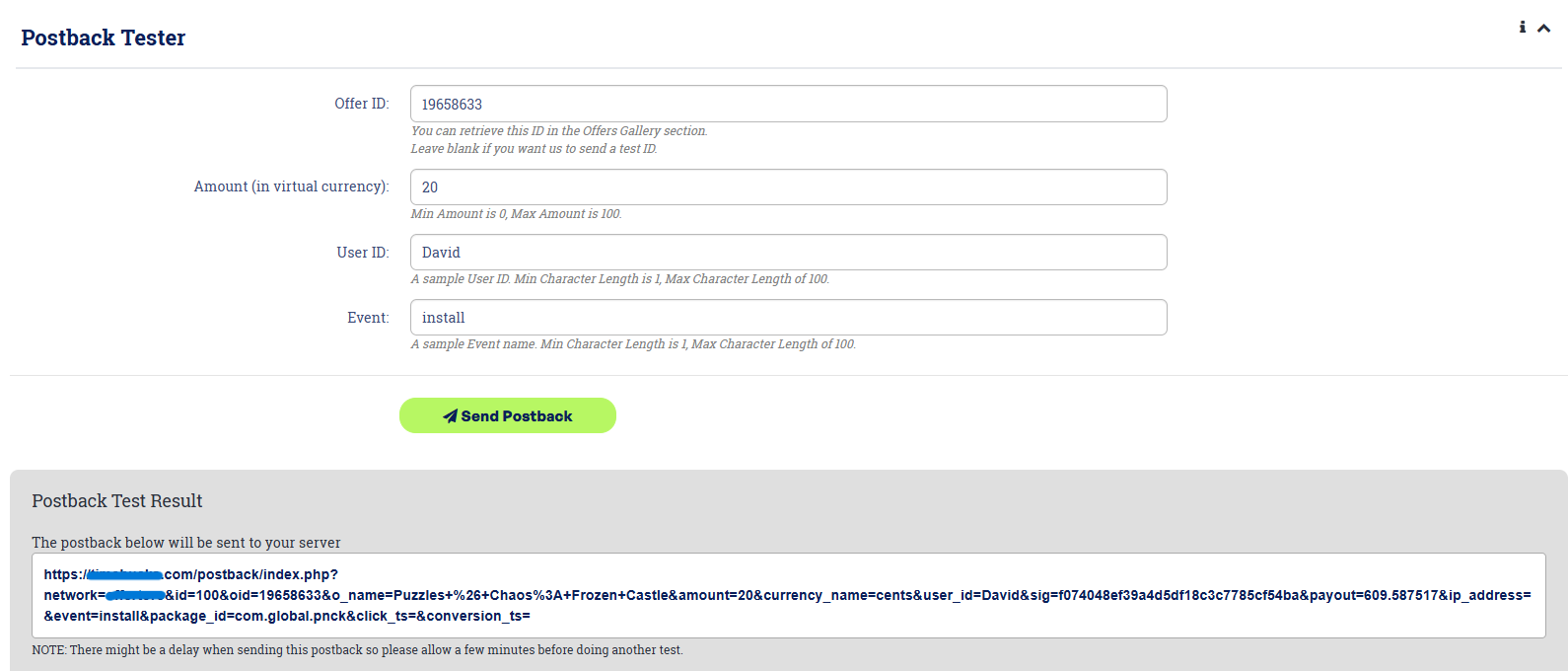
Postback sent successfully:
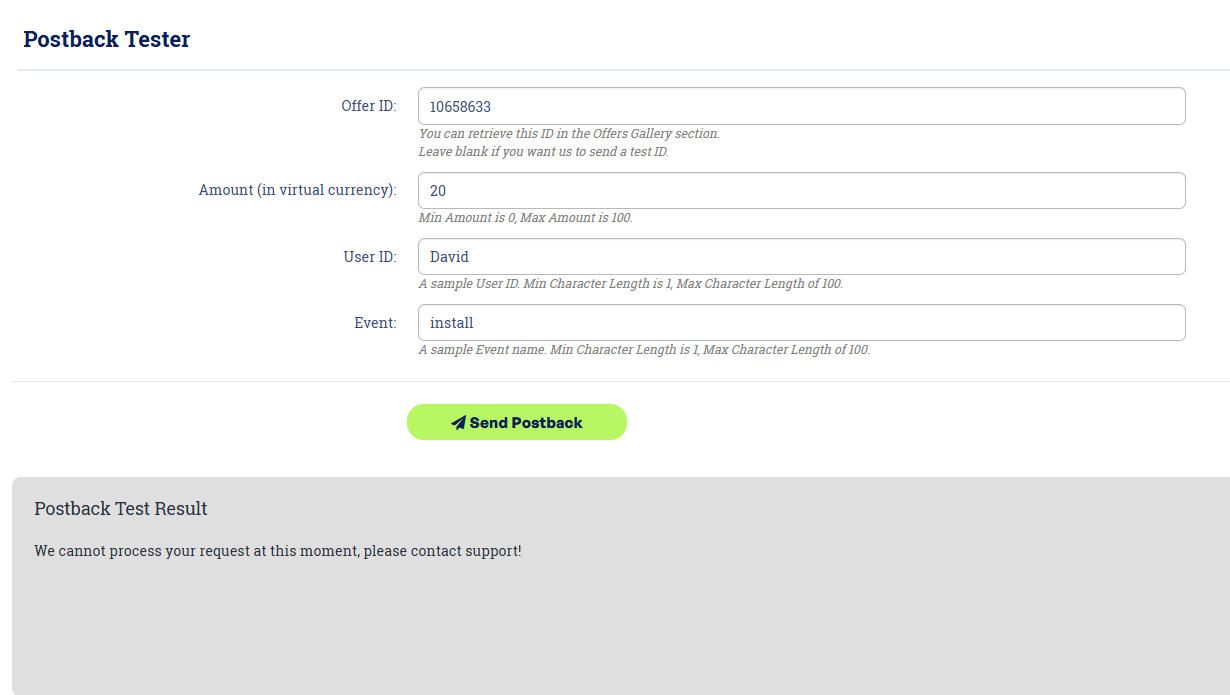
Postback send failed:
Before you start (developers)
You will need the two credentials from your source setup and the API URL below.
| Item | Where it comes from |
|---|---|
placement_id | app_id from your publisher dashboard |
token (App Key) | Your app key — obtained from app settings in publisher dashboard |
| API URL | https://api.wall.torox.io |
uid / User Details | Your own unique identifier for each user |
token must never appear in client-side code, a mobile app bundle, or a browser request. All authenticated calls happen server-to-server.Option A — Offerwall (iFrame)
The Offerwall uses a server-authenticated flow. Your server asks Torox for a one-time wall link tied to a specific user, and you display that link in an iframe. The link carries only a random token, so no user data is exposed in the URL.
Why this version
- Fast load — around 1-second load times.
- Secure — the URL exposes only a random token; you're the only party that can make a token for a user. Malicious users/actors would not be able to see and play with other players' wall.
- Data signals — enhanced data signals for deeper user insights and future personalization.
- Cleaner traffic — no "ghost" users, and other actors can't view or tamper with a user's wall.
- Better UX — higher-quality creatives, smart filtering between games and tasks, and clearer offer progress.
Step 1 — Create a session (server-side)
From your server, request a wall URL for the user:
POST https://api.wall.torox.io/partner/session
     ?placement_id=<YOUR_PLACEMENT_ID>&token=<YOUR_APP_TOKEN>

{
  "player": {
    "uid": "<YOUR_USER_ID>"
  }
}token. Make it from your server, never from a client.Step 2 — Read the response
{
  "ok": true,
  "wall_url": "https://wall.torox.io/<PLAYER_TOKEN>"
}Option B — API
The API solution gives you the ability to integrate the offers natively inside your product. All requests are HTTPS GET and return JSON. Every request needs your source_id and token.
The typical flow
- Fetch campaigns for your placement and render them as a list.
- When a user taps one, fetch that campaign's details for their location.
- When they're ready to start, generate a click URL and redirect them to it.
- Optionally, show users their own reward history.
1 · Get Campaigns — required
All available campaigns for your placement. goals=all adds the reward events on multi-reward campaigns. No user ID needed.
https://api.wall.torox.io/partner/campaigns?source_id={YOUR_SOURCE_ID}&
token={YOUR_TOKEN}&goals=all| Parameter | Required | Description |
|---|---|---|
source_id | Required | Your App Placement ID. |
token | Required | Your API token (App Key). |
goals | Optional | Pass all to include every campaign event. |
The list can also be filtered and sorted. These are optional, combine with AND logic, accept comma-separated values, and may appear only once in the URL.
| Parameter | Accepted values |
|---|---|
os | ios, android, web, all |
geo | Two-letter country codes, case-insensitive. |
vertical | Vertical names, matched on prefix. |
vertical_groups | Vertical group names. |
payout_type | CPI, CPE, CPA. |
min_payout / max_payout | Range on payout. |
min_amount / max_amount | Range on amount. |
min_rating / max_rating | Range on rating. |
min_completions / max_completions | Range on completions. |
min_user_rating / max_user_rating | Range on userRatingAvg. |
min_user_rating_count / max_user_rating_count | Range on userRatingCount. |
sort | column-direction pairs over rating, payout, completions, created with ASC or DESC. Defaults to rating-DESC. |
https://api.wall.torox.io/partner/campaigns?source_id={SOURCE_ID}&token={TOKEN}&
goals=all&os=android&geo=US&min_payout=1&sort=payout-DESC400 instead of a campaign list, so don't append your own tracking parameters. Each parameter may appear only once — use os=ios,android, never os=ios&os=android.Response
A JSON array of campaigns, or an empty array when nothing matches. Not paginated.
[
  {
    "offerId": 19661864,
    "name": "Legend of Mushroom",
    "description": "Play the game and complete all events.",
    "callToAction": "Play the game and complete all events.",
    "disclaimer": null,
    "os": "ios",
    "geos": "US",
    "packageId": "id6475333787",
    "landingUrl": "https://apps.apple.com/us/app/id6475333787",
    "image": "https://static.offertoro.com/uploads/offers_image/d91dad7c....jpg",
    "coverImage": "https://static.offertoro.com/uploads/offers_image/84db2701....jpg",
    "payout": 144.01,
    "amount": 864060,
    "payoutType": "CPI",
    "hasAbsolutePayout": 0,
    "rating": 501519,
    "completions": 670,
    "userRatingAvg": 0,
    "userRatingCount": 0,
    "isMr": 1,
    "verticalNames": "Gaming - RPG",
    "verticalIds": "30",
    "pinned": false,
    "promoted": false,
    "events": [
      {
        "eventId": 1,
        "orderId": 1,
        "eventName": "Open the game",
        "callToAction": "",
        "payout": 0.01,
        "amount": 60,
        "timeframeMin": 0,
        "timeframeMax": 0,
        "isRecurring": 0,
        "recurringFrequency": null,
        "offerId": 19661864
      },
      ...
    ]
  },
  ...
]
Campaign fields
| Field | Type | Meaning |
|---|---|---|
offerId | number | Campaign identifier. Pass it as campaign_id. |
name | string | Campaign title. |
description | string | Long description. |
callToAction | string | Short instruction for the user. |
disclaimer | string or null | Legal or eligibility note. |
os | string | Platform. See the values below. |
geos | string | Country codes. AA means all countries. |
packageId | string | Store package or bundle identifier. |
landingUrl | string | Store listing for the campaign. |
image | string | Square icon. |
coverImage | string | Wide cover image. |
payout | number | Your revenue for the full campaign. |
amount | number | User reward, in your currency. |
hasAbsolutePayout | number | 1 when the payout is fixed, not a percentage. |
payoutType | string | CPI, CPE, CPA. |
rating | number | Internal ranking score, used by sort=rating. |
completions | number | Times the campaign has been completed. |
userRatingAvg | number | Average user rating, 0 when unrated. |
userRatingCount | number | Number of user ratings. |
isMr | number | 1 for multi-reward. Test for events rather than this flag. |
verticalNames | string | Vertical names. |
verticalIds | string | Vertical identifiers. |
pinned | boolean | Pinned to the top for your placement. |
promoted | boolean | Given promoted placement. |
events | array | Reward events. Not present on every campaign. |
Event fields
| Field | Type | Meaning |
|---|---|---|
eventId | number | Event identifier. |
orderId | number | Display order of the event. |
eventName | string | Event title. |
callToAction | string | Event instruction. May be empty. |
payout | number | Your revenue for this event. |
amount | number | User reward for this event. |
timeframeMin, timeframeMax | number | Completion window in hours. 0 means no limit. |
isRecurring | number | 1 when the event repeats. |
recurringFrequency | number or null | How often a recurring event repeats. |
offerId | number | Campaign this event belongs to. |
events before loopingCampaigns that are not multi-reward carry no events key, and a small number flagged isMr: 1 arrive without one.Platform values
| Value | Meaning | Returned by |
|---|---|---|
ios | iPhone and iPad. | os=ios |
android | Android. | os=android |
web | Desktop only. | os=web |
mobile | Both iOS and Android. | os=ios and os=android |
unknown | Could not be determined. | No filter |
mobile is a response value, not a filter valueos=mobile returns 400. If you match os against an exact list of ios, android and web, these campaigns are dropped silently.The unfiltered catalogue is large: on staging a full request returned 1,639 campaigns and 4.6 MB in 8.1 seconds, against 244 campaigns in 2.7 seconds once filtered. Filter and cache rather than pulling everything per user.
Errors
| Status | Body |
|---|---|
400 | {"error": "Unrecognized parameter: page"} |
400 | {"error": "Invalid value for parameter os: windows"} |
400 | {"error": "Invalid value for parameter geo: USA"} |
400 | {"error": "Invalid sort direction for parameter sort: rating-SIDEWAYS"} |
400 | {"error": "Parameter supplied with no usable value: sort"} |
400 | {"error": "Invalid numeric value for parameter: min_rating"} |
400 | {"error": "Parameter must be supplied exactly once: os"} |
401 | Empty. Token missing or not recognised. |
An internal failure is answered with 200 and an empty array, so an empty result does not guarantee that nothing matched.
2 · Get Campaign Details — required
One campaign, resolved for a specific user and location. Use it for a campaign info page or to show the country-specific payout.
https://api.wall.torox.io/partner/user/campaign?source_id={SOURCE_ID}&token={TOKEN}&
uid={USER_ID}&geo={GEO}&campaign_id={CAMPAIGN_ID}| Parameter | Required | Description |
|---|---|---|
source_id | Required | Your App Placement ID. |
token | Required | Your API token. |
uid | Required | Your user's unique ID. |
geo | Required | ISO country code (e.g. US, GB). |
campaign_id | Required | The offerId from the campaign list. |
Response
The campaign as that user sees it. Fields match Get Campaigns. Shortened here to one event.
{
  "offerId": 19661864,
  "name": "Legend of Mushroom",
  "os": "ios",
  "isMr": 1,
  "description": "Play the game and complete all events.",
  "callToAction": "Play the game and complete all events.",
  "disclaimer": null,
  "image": "https://static.offertoro.com/uploads/offers_image/d91dad7c....jpg",
  "coverImage": "https://static.offertoro.com/uploads/offers_image/84db2701....jpg",
  "completions": 670,
  "verticalNames": "Gaming - RPG",
  "verticalIds": "30",
  "payout": 144.01,
  "amount": 864060,
  "events": [
    {
      "eventId": 1,
      "orderId": 1,
      "eventName": "Open the game",
      "callToAction": "",
      "payout": 0.01,
      "amount": 60,
      "timeframeMin": 0,
      "timeframeMax": 0,
      "isRecurring": 0,
      "recurringFrequency": null,
      "offerId": 19661864
    }
  ]
}
Errors
| Status | Body |
|---|---|
400 | Empty. uid, geo or campaign_id is missing. |
401 | Empty. Token missing or not recognised. |
500 | Empty. Internal error. |
3 · Get Click URL — required
The tracking URL to open for the user. Call it the moment they start the campaign — that click is what attributes the reward.
https://api.wall.torox.io/partner/user/click?source_id={SOURCE_ID}&token={TOKEN}&
uid={USER_ID}&geo={GEO}&campaign_id={CAMPAIGN_ID}| Parameter | Required | Description |
|---|---|---|
source_id | Required | Your App Placement ID. |
token | Required | Your API token. |
uid | Required | Your user's unique ID. |
geo | Required | ISO country code. |
campaign_id | Required | The offerId the user is starting. |
Response
{
  "ok": true,
  "clickUrl": "https://torox.io/click_track/track/19661864/0/0/16444
               ?player_uid=user-001&xvs=<SIGNATURE>"
}
Failures are reported inside a 200, so check ok before using clickUrl.
{
  "ok": false,
  "error": "..."
}
Errors
| Status | Body |
|---|---|
400 | Empty. uid, geo or campaign_id is missing. |
401 | Empty. Token missing or not recognised. |
500 | Empty. Internal error. |
4 · Get User Activity — optional
The campaigns a user has engaged with and how far they have got. Useful for "My Rewards," "Pending Credits," or "Completed Offers" screens.
https://api.wall.torox.io/partner/user/activity?source_id={SOURCE_ID}&token={TOKEN}&
uid={USER_ID}| Parameter | Required | Description |
|---|---|---|
source_id | Required | Your App Placement ID. |
token | Required | Your API token. |
uid | Required | The user whose activity you want. |
Response
A JSON array. Empty when the user has no recorded activity.
[
  {
    "offerId": 19661864,
    "name": "Legend of Mushroom",
    "os": "ios",
    "isMr": 1,
    "image": "...",
    "coverImage": "...",
    "description": "...",
    "packageId": "id6475333787",
    "landingUrl": "https://apps.apple.com/us/app/id6475333787",
    "clickSt": 1758500000,
    "tasksCount": 16,
    "completedTasksCount": 3,
    "completionDays": 30,
    "totalAmount": 960,
    "totalPayout": 0.16,
    "status": "InProgress",
    "events": [
      {
        "eventId": 1,
        "eventName": "Open the game",
        "orderId": 1,
        "payout": 0.01,
        "amount": 60,
        "completionTime": 1758500123,
        "completionCount": 1,
        "status": "Rewarded",
        "mcrStatus": 1,
        "fromEventId": null
      }
    ]
  }
]
Activity fields
| Field | Type | Meaning |
|---|---|---|
clickSt | number | Unix time of the user's first click on this campaign. |
tasksCount | number | Events in the campaign. |
completedTasksCount | number | Events the user has completed. |
completionDays | number or null | Days allowed to finish, null when unlimited. |
totalAmount | number | Reward the user has earned so far. |
totalPayout | number | Your revenue so far. |
status | string | InProgress, Rewarded, AttentionNeeded, Support, Expired, Denied. |
events[].completionTime | number | Unix time the event was completed. |
events[].completionCount | number | Completions, for recurring events. |
events[].status | string | Same values as the campaign status. |
events[].mcrStatus | number | Internal reward-review state. |
events[].fromEventId | number or null | Originating event, for derived events. |
Errors
| Status | Body |
|---|---|
400 | Empty. uid is missing. |
401 | Empty. Token missing or not recognised. |
500 | Empty. Internal error. |
5 · Testing Environment
We recommend using the staging environment to test your integration. Add the word stage after wall in the base URL:
https://api.wall.stage.torox.io/partner/campaigns?source_id={YOUR_SOURCE_ID}&
token={YOUR_TOKEN}Postback — how users get rewarded
When a user completes an action and it's verified, Torox sends a server-to-server message to your postback URL. Your endpoint reads it and credits the user. Without a working postback, users complete offers but never receive rewards — so this is the most important part to get right. The following is a list of all the parameters which are passed to you for every postback:
| id* | The ID of the conversion in our system. |
| oid* | The ID of the offer converted in our system. |
| amount* | The amount that your user should receive for this conversion nominated in your currency. For example if your currency name is Points and your Currency Equivalent field is 35 and the conversion is worth $1, we will send "35" in this field. |
| currency_name* | The currency name that you set in your App's Placement page. |
| user_id* | The id of your user, the one you have placed in the iframe integration. This id should not be empty or 0. |
| payout* | The publisher's revenue for this conversion. |
| o_name* | The name of the offer converted. |
| sig* | A signature to be sure the postback is legit. The signature is composed the following way: md5(oid + "-" + user_id + "-" + Your App Placement's KEY). You can find your App's Placement key in the App's details page. AKA secret key. |
| package_id* | (for mobile campaigns only) — the package id for the Android / iTunes app. |
| ip_address* | IP Address of the user when the click happened. |
| event* | The name of the event the user completed. This will be added if the offer has multiple events. |
| subid1 / subid2 / subid3 | Those would be passed in case you have sent us some subid data (optional). |
| click_ts* | The unix timestamp when the user clicked on the offer. |
| conversion_ts* | The unix timestamp when the actual conversion happened. |
(*) Those parameters are included in the Minimal Parameter Postback and will always be sent when this option is enabled.
If you would like to pass those additional subids in your iframe based OfferWall, they can be passed in the following way:
https://torox.io/ifr/show/YOUR_PUB_ID/UserID/YOUR_APP_ID/0/0/subid1/subid2/subid31 · Set your postback URL
You enter your postback URL during app placement setup (or later, by editing the source). It's an endpoint on your server that Torox calls with reward details as query parameters. A valid URL looks like:
http://www.Your-Site.com/pb/?OID=123&user_id=JohnSmith&Amount=10...2 · Respond correctly
Your endpoint should accept the request, credit the user, and return a success response so Torox knows the reward was delivered.
We expect a "1" (without quotes) as a response to a successfully received postback and a "0" (without quotes) to indicate that the postback was received incorrectly. If we have not received a "1" as a reply, we will try to send the postback up to 5 times, based on the app settings. After 5 failed tries, we will send you an email with the data of the conversion so you can process it manually.
3 · Postback IPs
All of our postbacks shall be sent from the following Torox IP: 44.212.211.226. Please white-list this IP as this is the ONLY IP we'll be sending postbacks from.
4 · Reversal Postbacks
By default, all reversal postbacks are disabled. You can choose to enable it by going to the settings page on one of your app placements.
All reversal postbacks will have a negative amount or payout. Each reversal is delivered as a new postback with a different ID, rather than a modification of the original postback.
Example: Standard Postback
https://api.Your-Site.com/tasks/torox/pb?userId=5010a38c-7f28-[…].3867&reward=19315.0000&hash=9cafe5efe43e69919811d1353229e3e8Example: Reversal Postback:
https://api.Your-Site.com/tasks/torox/pb?userId=5010a38c-7f28-[…]=-24.3867&reward=-19315&hash=9cafe5efe43e69919811d1353229e3e8Set up or update your billing details
To receive payments from Torox, add your billing and bank details in the dashboard. This is handled through Tipalti, our payments provider, and only needs to be done once.
-
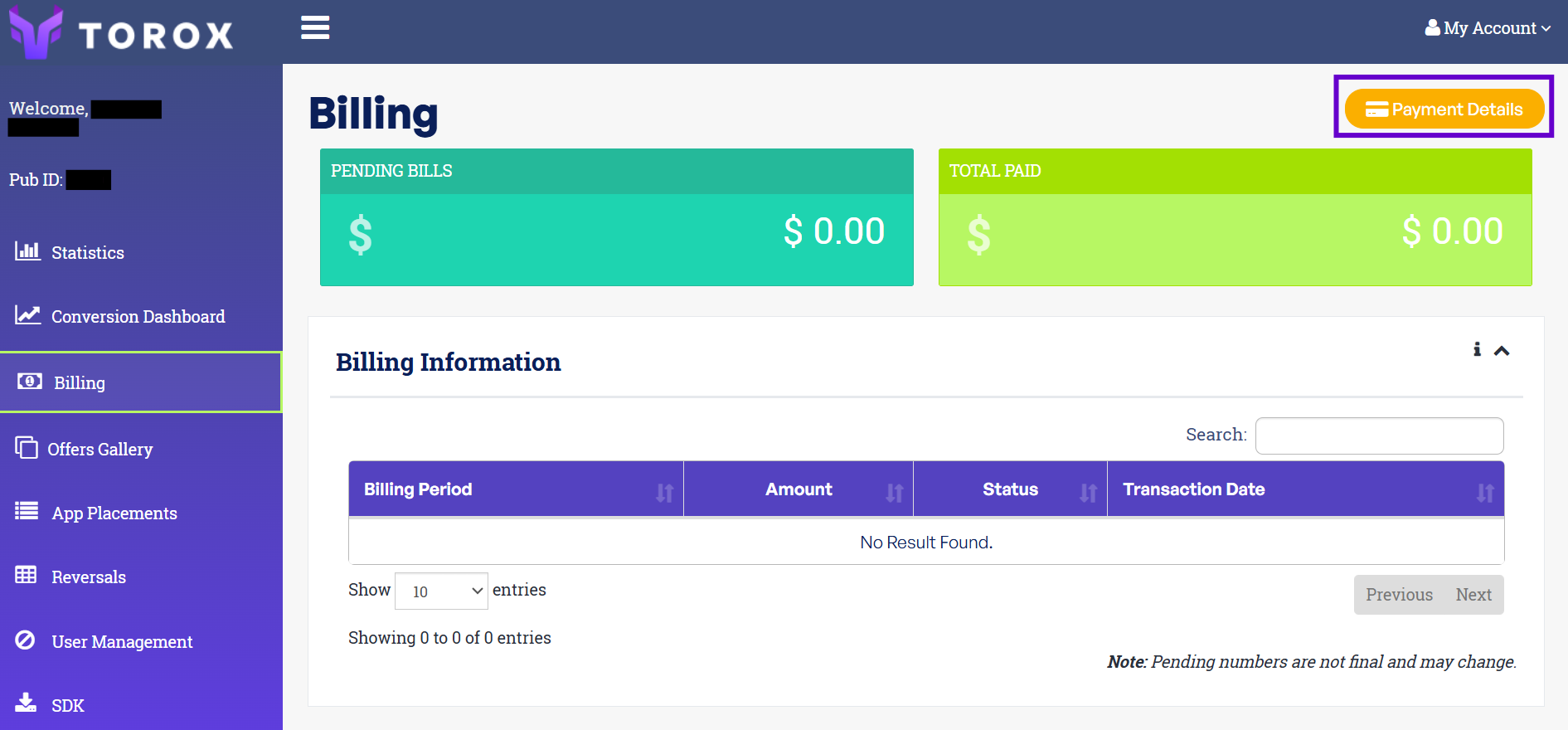
Open BillingIn the Torox dashboard at torox.io, open Billing from the left-hand menu, then click Payment details on the Payment Details panel.
-
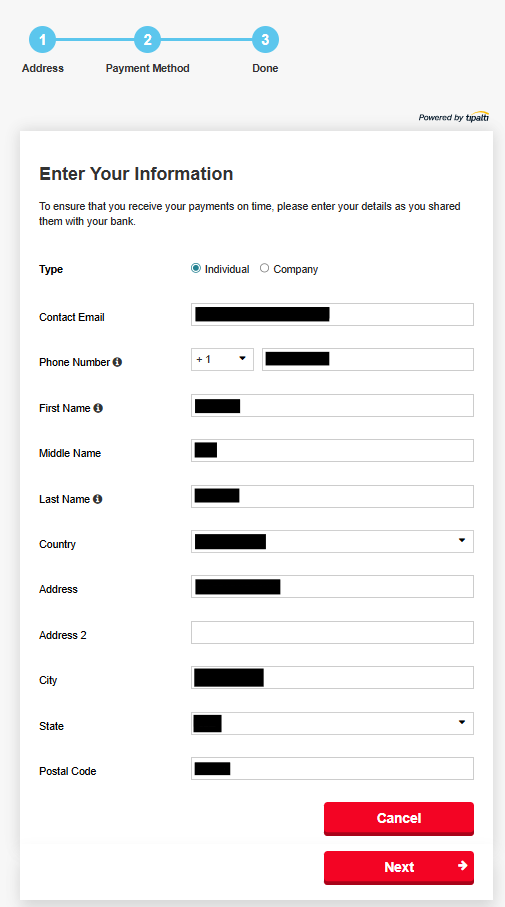
Enter your addressClick Edit and fill in your details. Click Next.
-
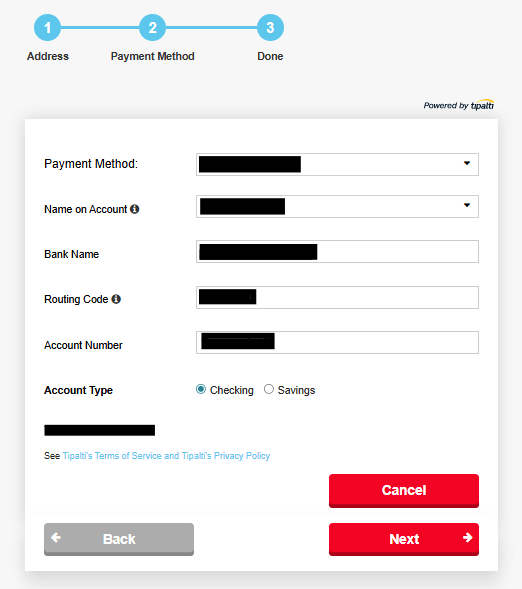
Add your payment methodEnter your bank details — name on account, bank name, routing code, and account number — then click Next to finish.
App promos
The App promo feature lets you increase the app currency presented to your users! This modification can be done for a limited, known-ahead time and lets you choose targeted countries as well. Applying these changes over API offers can also be modified by you.
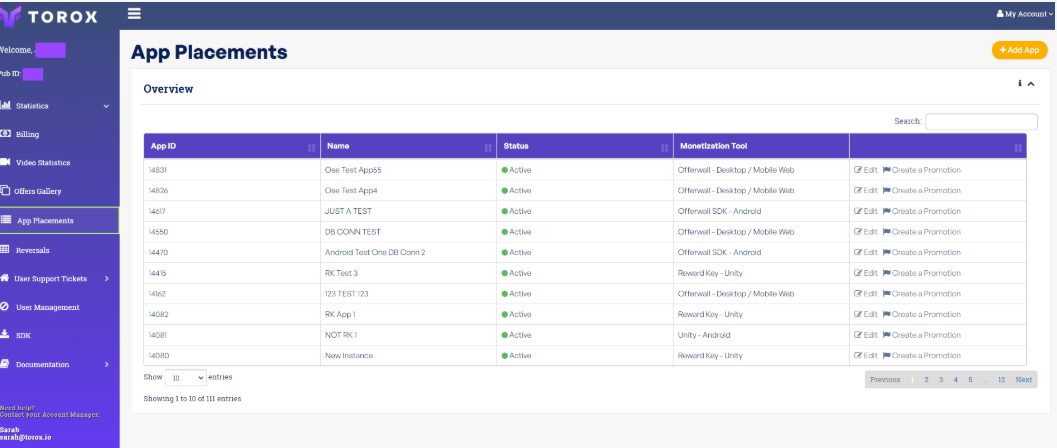
To access App Promos, select the App in the Overview section and press Edit:
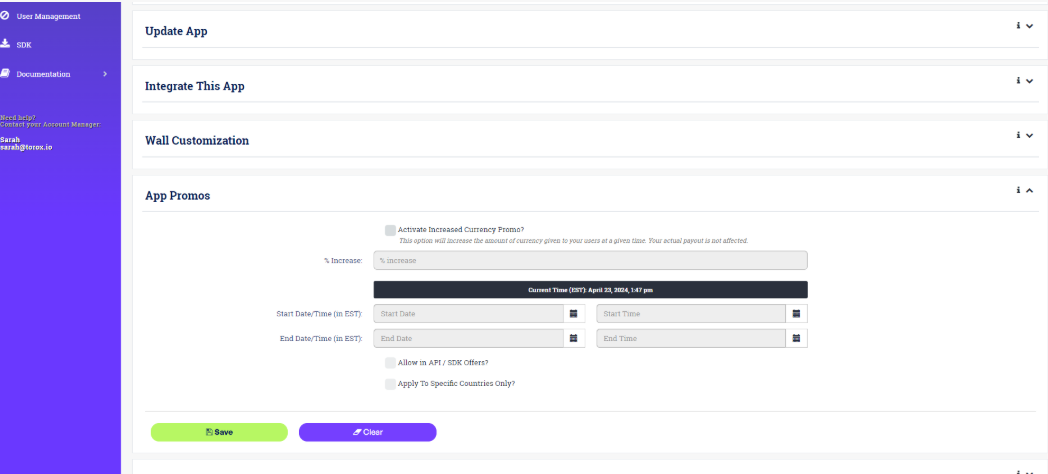
Go to the App Promos section:
Explanation of fields — App Promos:
- Activate Increased Currency Promo: Check this if you wish to run the Promo at the specified date, time and duration. During the duration of the Promo, the currency amount given to your users will be increased.
- % Increase: The percentage of currency increase for the duration. The minimum increase is 0%, with 150% as the maximum. If you need to set a higher percentage, please contact your assigned Account Manager.
- No. of Hours: Specifies the duration of the Promo in hours (HH:mm format). For example, if you intend to run the Promo for 6 hours you can simply write 6. If you need to run the promo for 24 hours and 30 minutes, simply write 24:30.
- Start Date/Time: Specifies the starting date and time of the Promo. Click anywhere in the textbox to select the date or time. Date and Time should be in EST timezone.
- Allow in API/SDK Offers: Select this option to apply the Promo to API offers.
- Apply To Specific Countries Only? Select this option to apply the Promo to specific countries only. Once selected, a textbox will appear for you to select the countries. You can add, or remove, multiple countries as you like.
After filling up all the information, click Save. Clicking Clear will disable and clear all fields in the current session. Click Save to persist the data.
Offer notification service
In order to be notified about offer changes you should subscribe to the notification service. Torox will send you a notification by email for the next events:
- Offer has been paused
- Offer has been reactivated
- Offer payout has been changed
- Offer cap has been changed
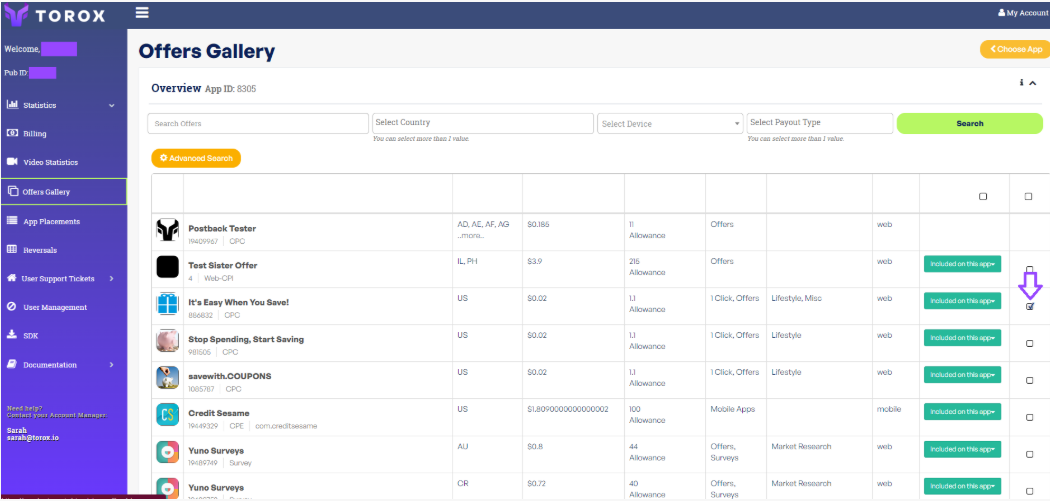
To subscribe for an offer notification enter the Offers Gallery and choose the app placement. After choosing the app placement a list of all available offers will be presented. Tick the Notify box next to the offer you would like to subscribe and get notifications for, or untick the box in order to remove the subscription.
Another possibility available is to tick the Enable Notification tick box via the offer view.
Notification Email Address
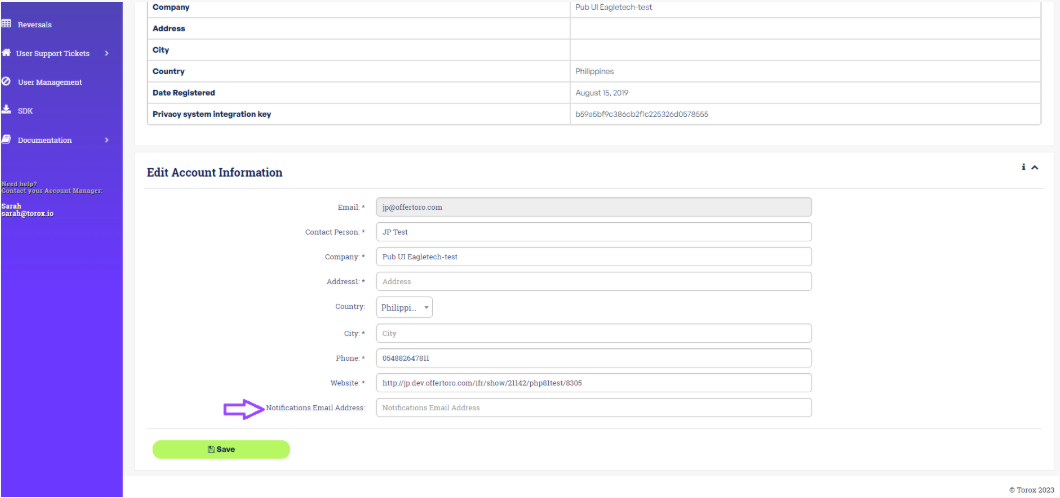
Notifications will be sent to the email address you are logging into the Torox system with by default. Changing the notification email address can be done under Account Info. Click on My Account then on Account Info. On the Edit Account Information section enter the desired mail address for notification subscription in the Notifications Email Address field.